How to Connect Zotero 7 to Obsidian (MacOS)
Note: This is assuming you already have both Zotero 7 and Obsidian installed on your machine. Adjust accordingly per your operating system. :)
Why do this? Connecting Zotero to Obsidian helps create a more seamless research workflow, where your highlights, notes, metadata, etc. can be easily exported from the former to the latter. This also facilitates keeping your Reading Notes in one place, and lets you make your own concept notes as you read so you can more easily identify themes and connections as you read. This is just one way of doing so, and as you get more familiarized with your workflow, you will be able to make it as complex or simple (simple is better) as you need.
Limitations: If you'd like to write on Obsidian but export to Word (for example, to submit your work to journals) or to be able to create and keep an active list of references as you write, you will need to install Pandoc and use additional plugins like Pandoc Reference List and Enhancing Export. Pandoc Reference List will also help you search your Library within Obsidian through type rather than through the Zotero search bar, which could reduce friction for some.
If you're only after creating Reading Notes (and exporting annotations from Zotero to Obsidian), and inserting parenthetical citations and bibliographies, this process should be fine (and is pretty basic anyway).
Step 1: On Zotero: Better BibTeX for Zotero Plugin
1. Download the Better BibTeX for Zotero plugin (The file extension is .xpi)
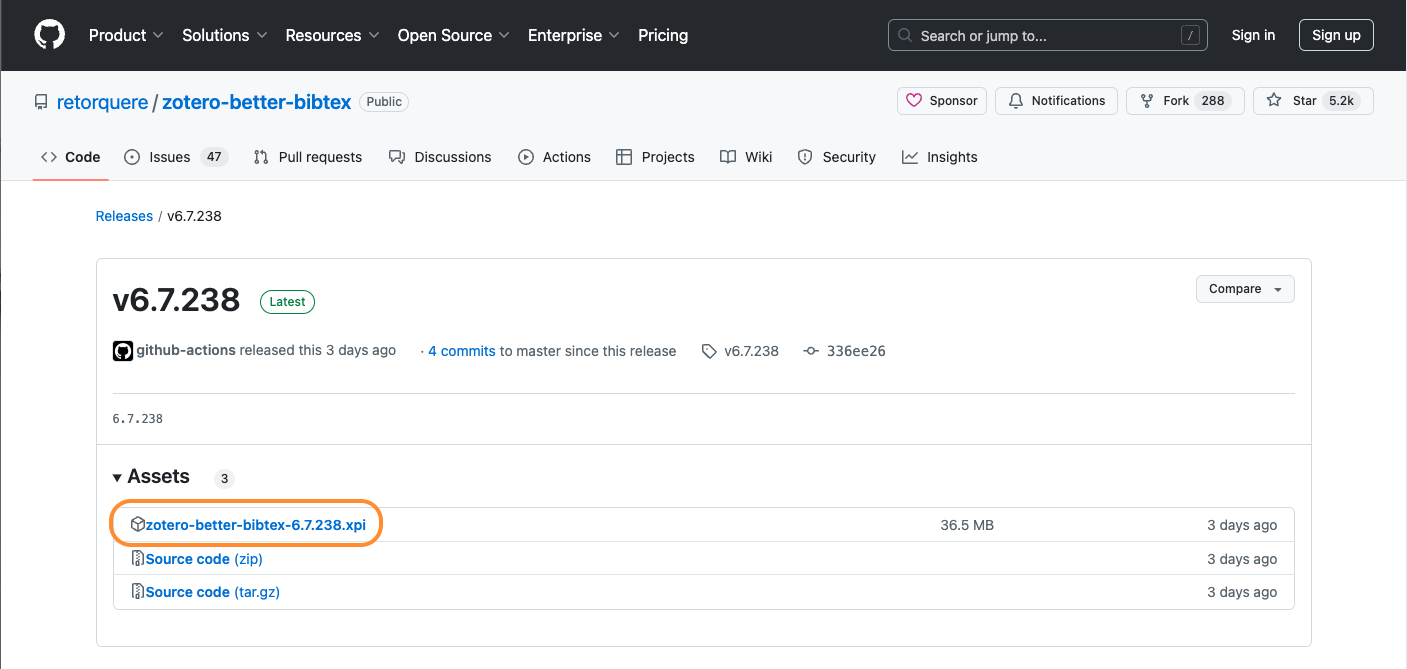
2. Follow the Installation Instructions for Zotero.
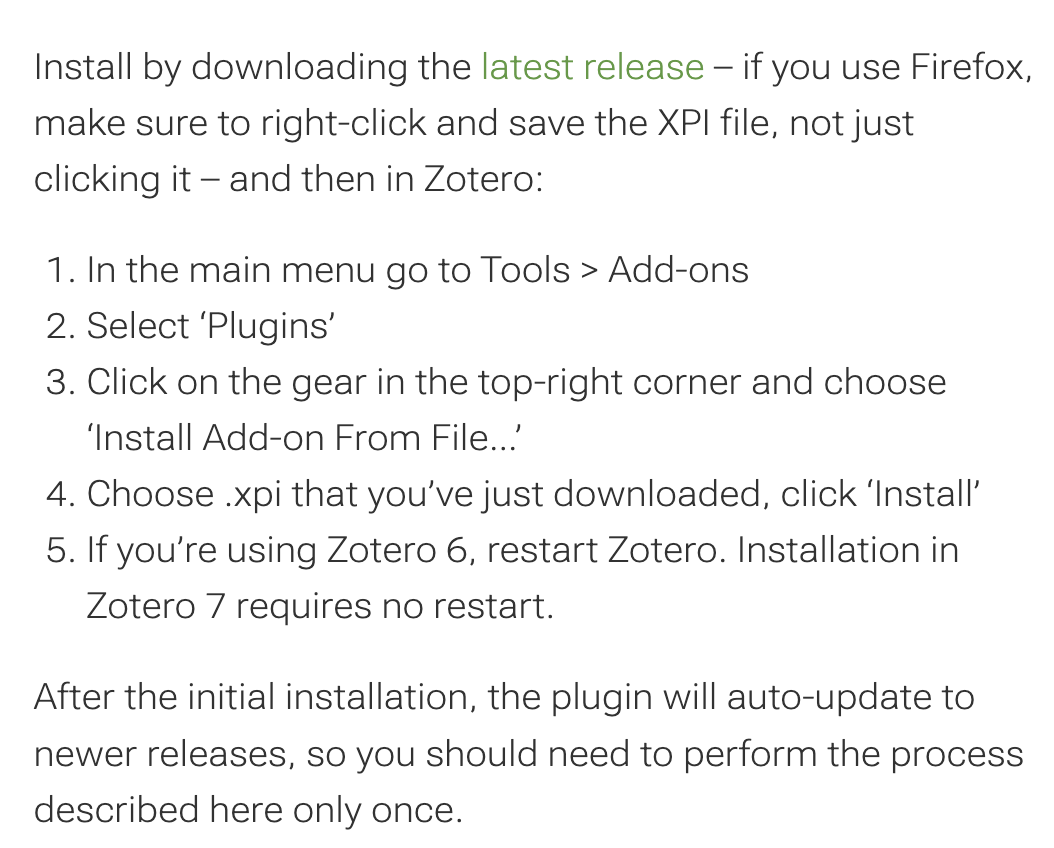
What this does: BBT generates unique 'citation keys' for each reference saved on Zotero (they will start with an '@') and facilitates exportation to Obsidian. More info on the Retorque website.
2. Export your Library as a .bib file.
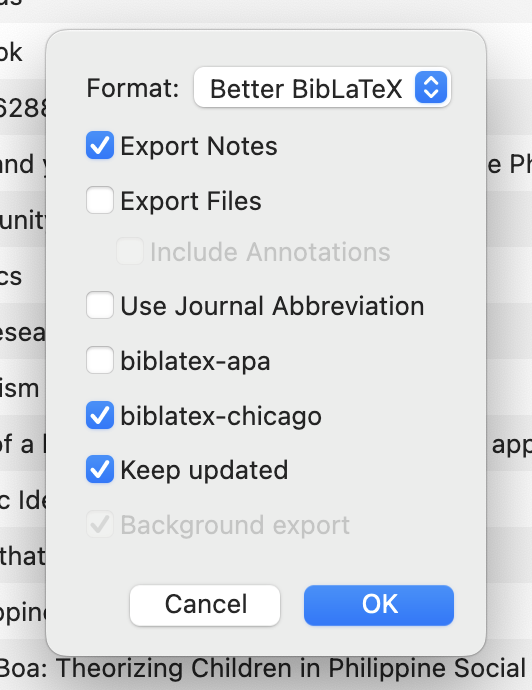
Right click on "My Library" from the Zotero Collections pane (usually the top left pane) and select 'Export Library'. A prompt will come up, select 'Better BibLaTeX', 'Export Notes' and 'Keep Updated' (as shown in the picture). I selected biblatex-chicago because I use the Chicago Manual of Style.
3. Save this .bib file to a cloud-based location
(helpful if you use multiple devices and need to be synced). I like naming it with the month and date just to help me remember when I last exported. However, checking "Keep Updated" should mean that this file will automatically save all changes as they are made.
4. Check that everything works.
Go to Zotero > Preferences > Better Bibtex > Better Bibtex Preferences > Automatic Export and make sure that the path directs to the .bib file.
Step 2: On Obsidian: Zotero Integration Plugin
1. Save the ZI Template onto your Obsidian vault.
Download it from the link and drag it into your file explorer/Templates folder. There are lots of templates in the community, so far this works for me.
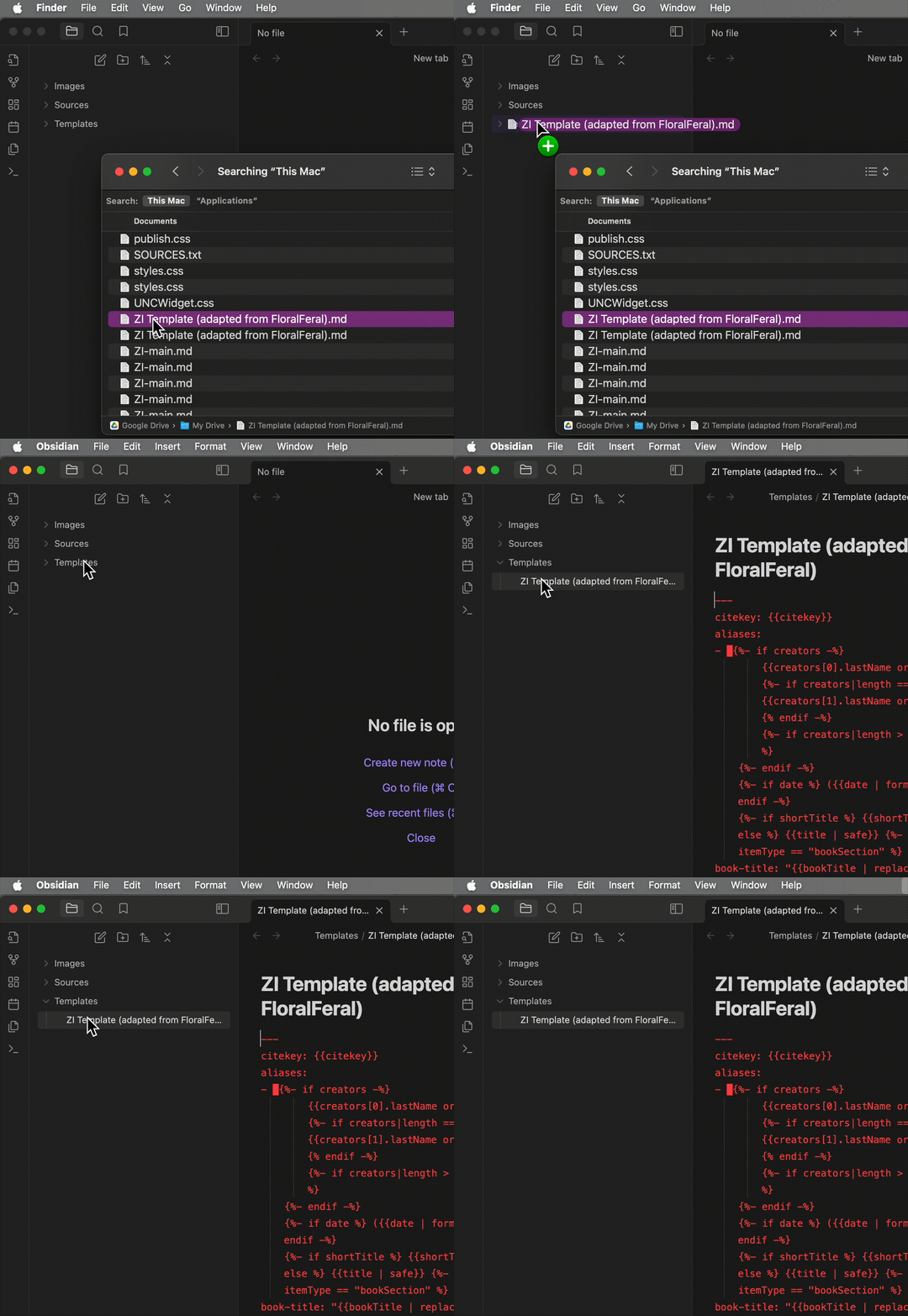
2. If you haven't yet, go to Obsidian Settings and activate Community Plugins.
Click 'Browse' and search for 'Zotero Integration', then install and enable the plugin. The next step is to modify the plugin options.
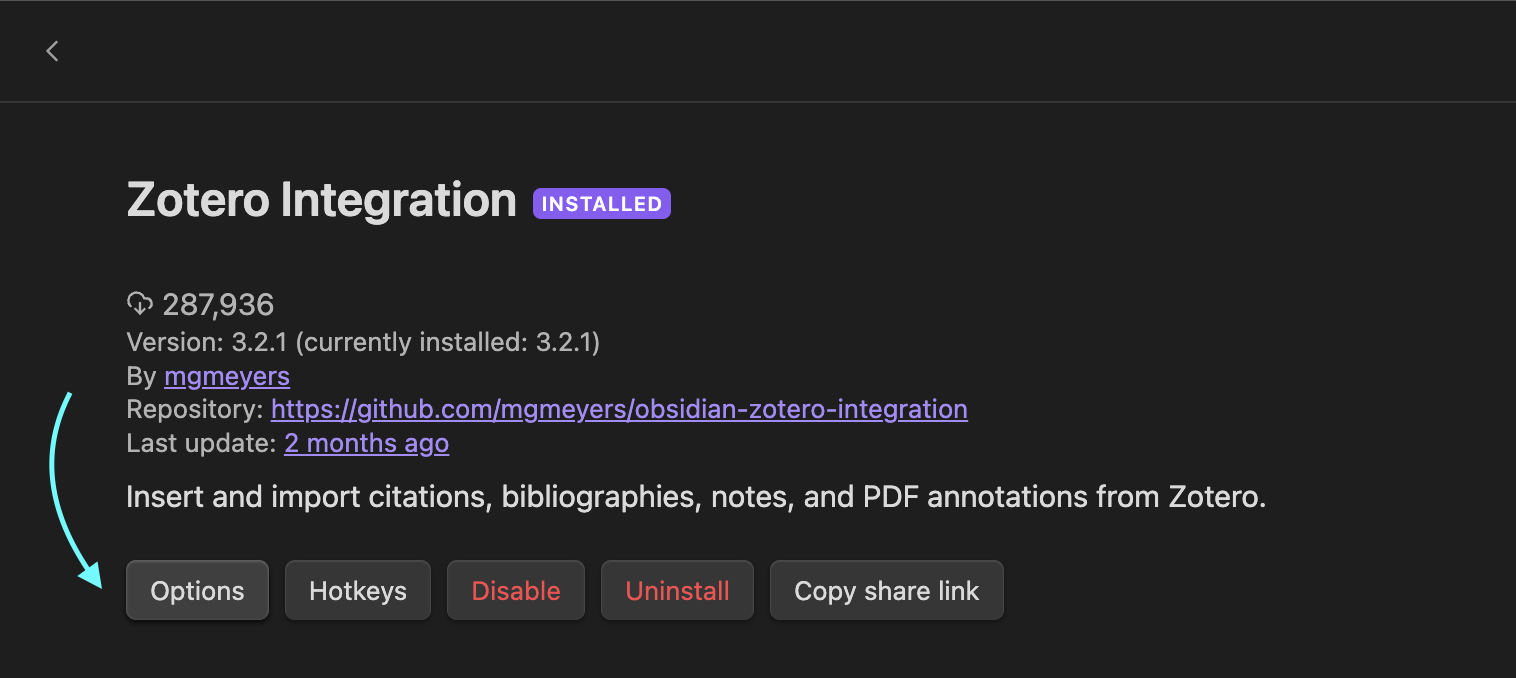
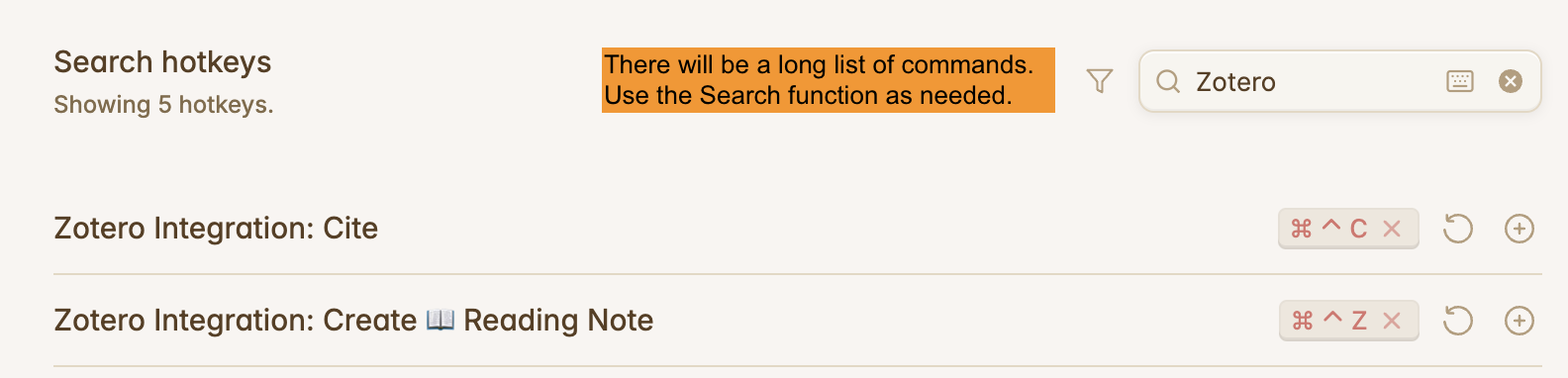
Set Your Hotkeys. At this point, you can also set hotkeys for Zotero Integration if you like. Click on the 'Hotkeys' button on the left sidebar, search for your Zotero Integration commands and set your desired hotkeys (I like 'Cmd + Ctrl + Z' for Creating Reading Notes, 'Cmd + Ctrl + B' for inserting bibliography/reference list entries and 'Cmd + Ctrl + C' for inserting citations).
3. Set the following for the plugin options/settings.
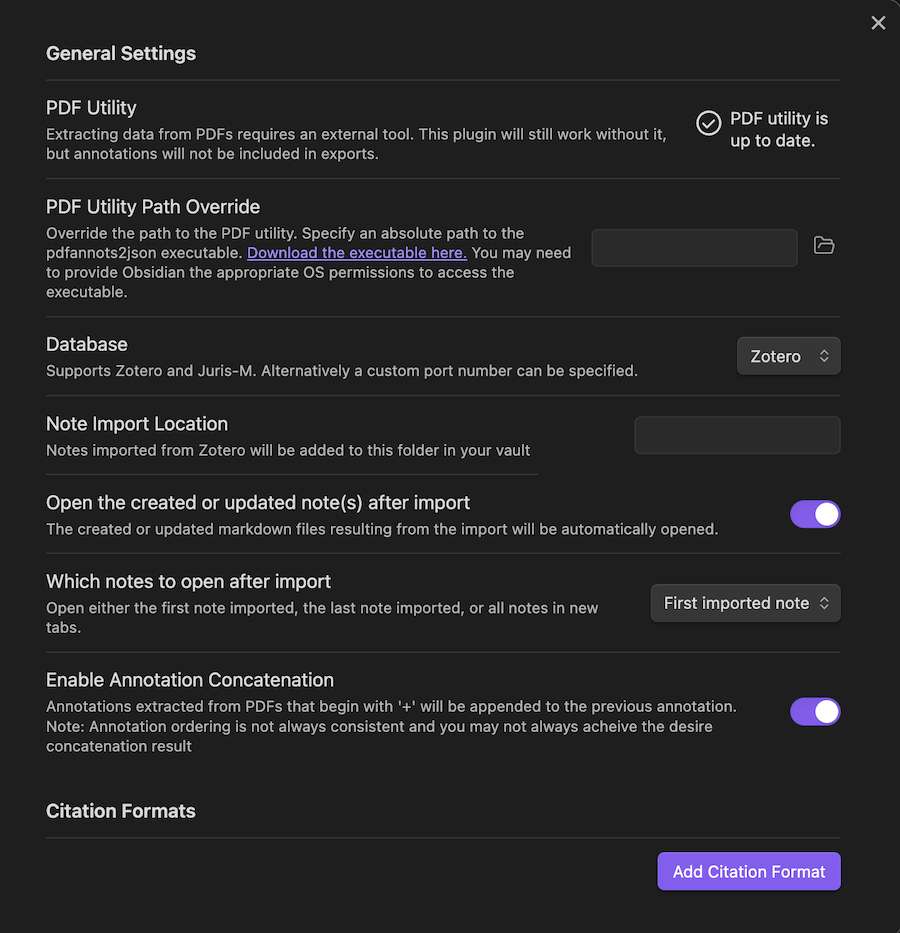
Click 'Add Citation Format' and assign a command word/phrase (like 'Cite' or 'Insert Reference'). Select 'Formatted Citation' as the output format (for now) and choose your desired citation style. Do this twice, one for inserting bibliography/reference list entries and one for inserting citations.
Click 'Add Import Format' and assign a command to create your Reading Note. I've included a screenshot below for suggestions on how fill in the options.
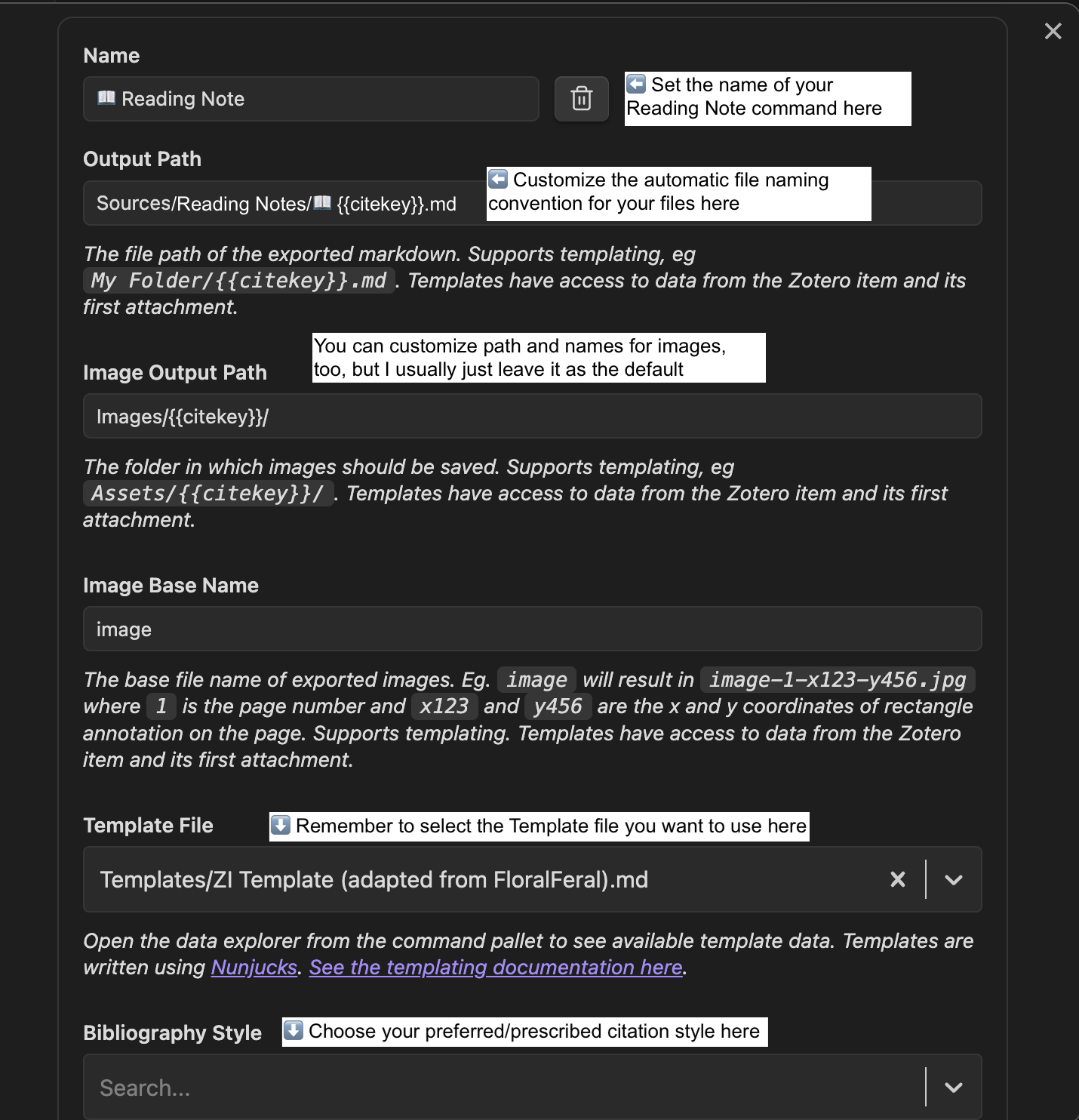
Step 3: Creating a Reading Note
Thus far, we have set up the connection between Zotero and Obsidian, but how do you actually make use of this in academic work?
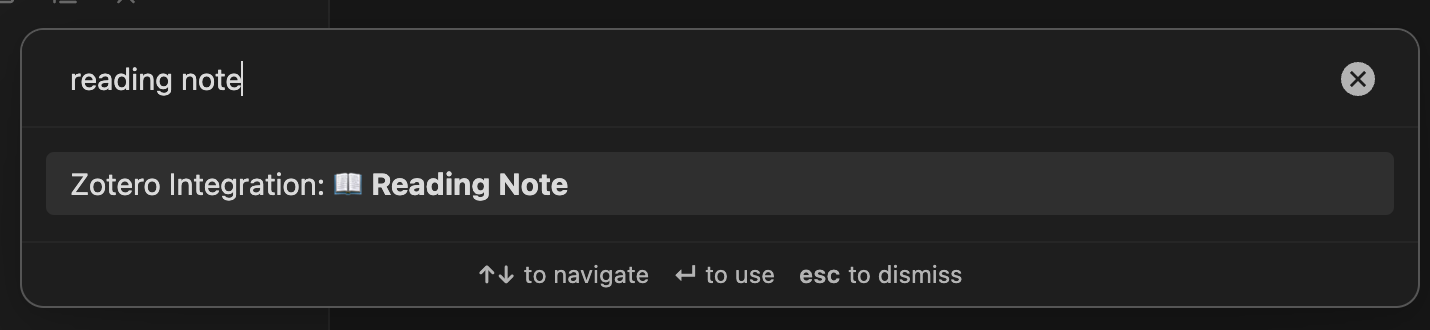
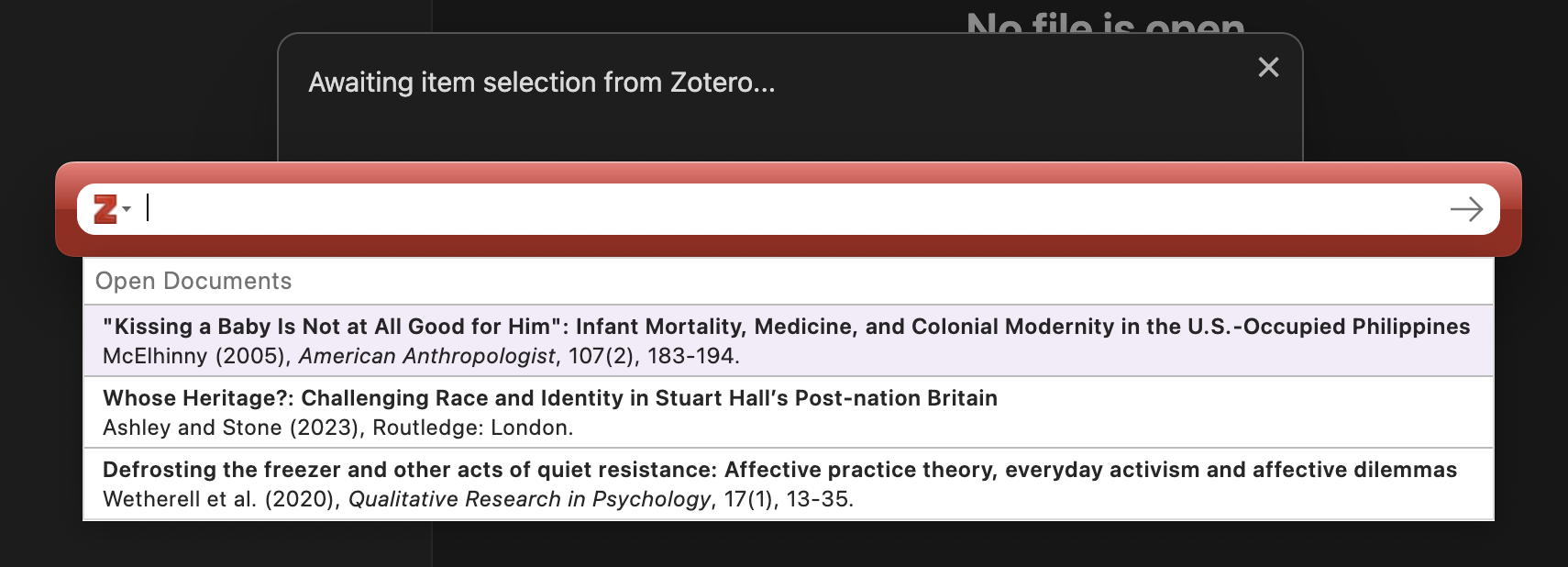
The first way is to use Zotero Integration to create a Reading Note. You can do this by opening the Command Palette (Cmd + P' on Mac) and searching for the plugin command for making a note (you set this up in the options earlier. In this case, it is '📖 Reading Note'). You can also use the hotkey that you assigned. Clicking on it will bring up a search bar for Zotero. Look for the reference you need and select it to create your Reading Note.
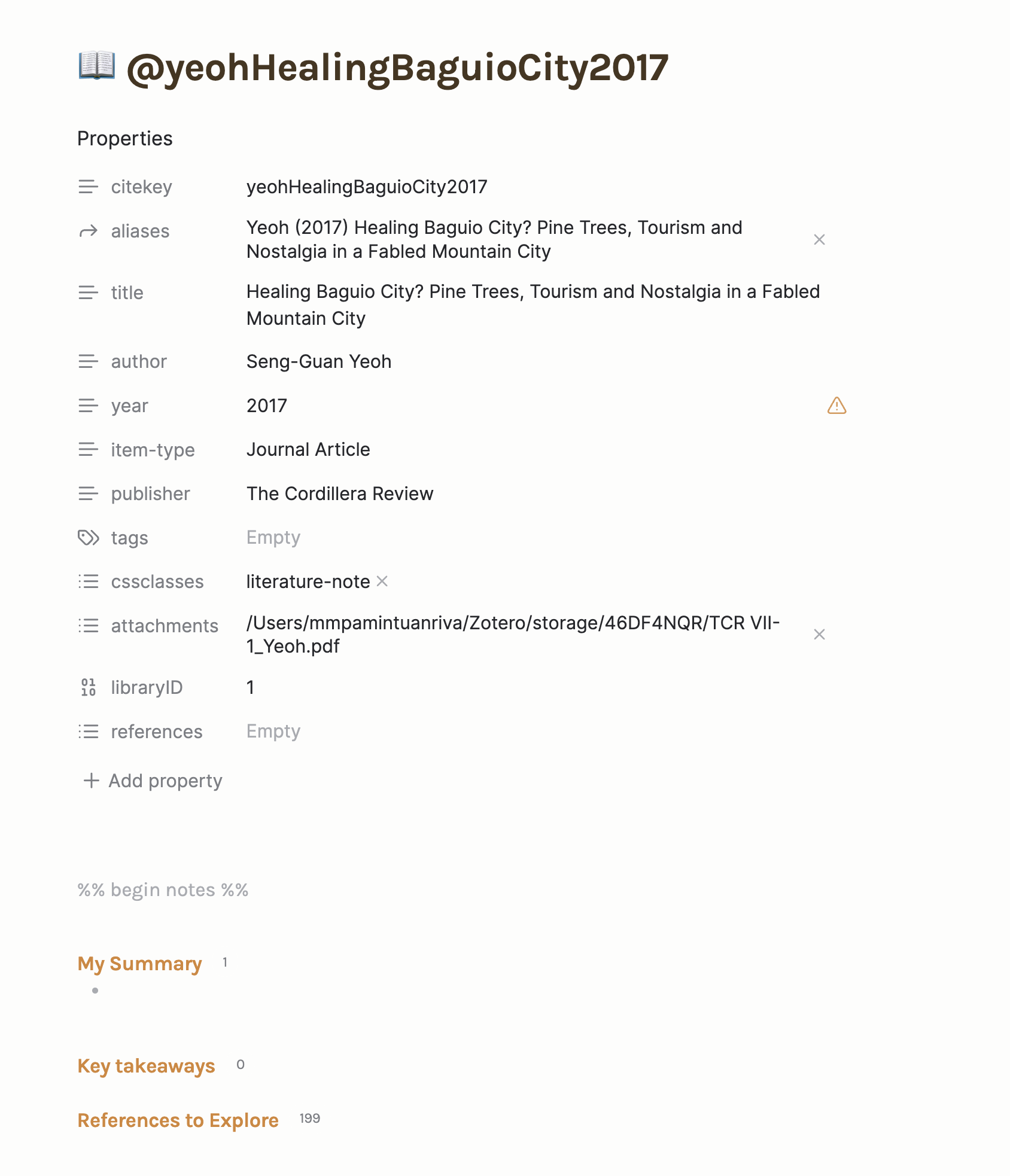
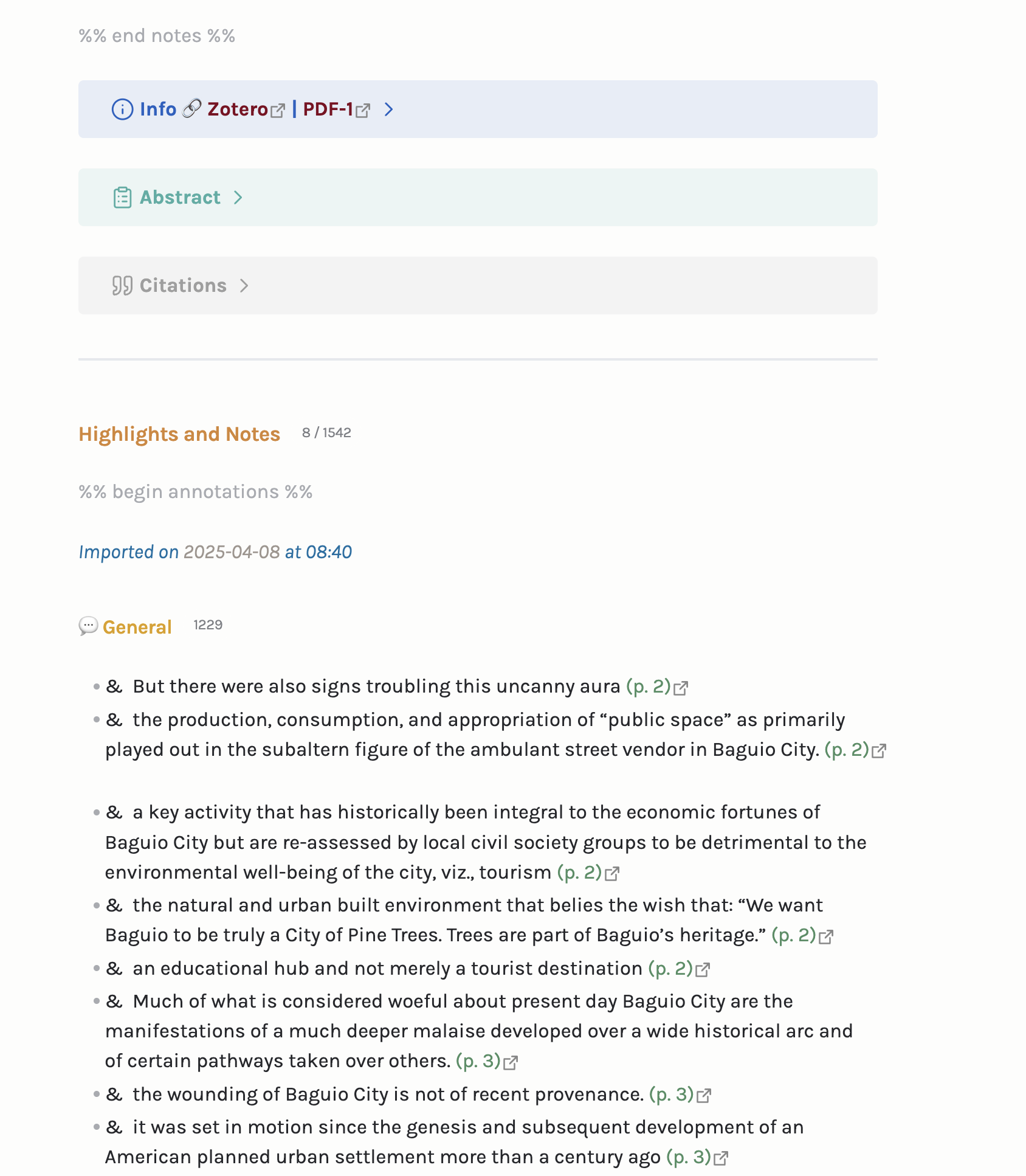
Below is an example of a Reading Note using the Template we saved earlier.
Step 4: Inserting Parenthetical/In-text Citations and Bibliographic Entries
You can also call up the Zotero search bar in Obsidian to insert parenthetical (also known as in-text) citations. If you set the 'Cmd + Ctrl + C' for inserting citations earlier, you can use that or press 'Cmd + P' to bring up the Command Palette and search for the command for inserting citations. After that, just search for the reference you need and it will be inserted with the correct format into your text.
Keep in mind that this method does not enable the automatic generation of a reference list based on the parenthetical citations already in the text. To do this, you will need the Pandoc Reference List plugin in Obsidian. Alternatively, this feature is already available on Google Docs and MS Word, with the caveat that these two may not be the best apps for non-linear writing and thinking.
.gif)