How to Set Up Pandoc and Pandoc Reference List Plugin for Obsidian
After you have done all the needed steps to connect Zotero and Obsidian, you will be able insert citations easily while you write in Obsidian by simply calling up your Zotero library through the Command Palette or through one of your assigned Hotkeys.
However, as mentioned in my tutorial on How to Connect Zotero 7 to Obsidian (MacOS), the results of this process are pretty basic and will not enable you to automatically generate Reference Lists (RL) based on the citations that have been inserted in your text body. This is where the Pandoc Reference List plugin comes in.
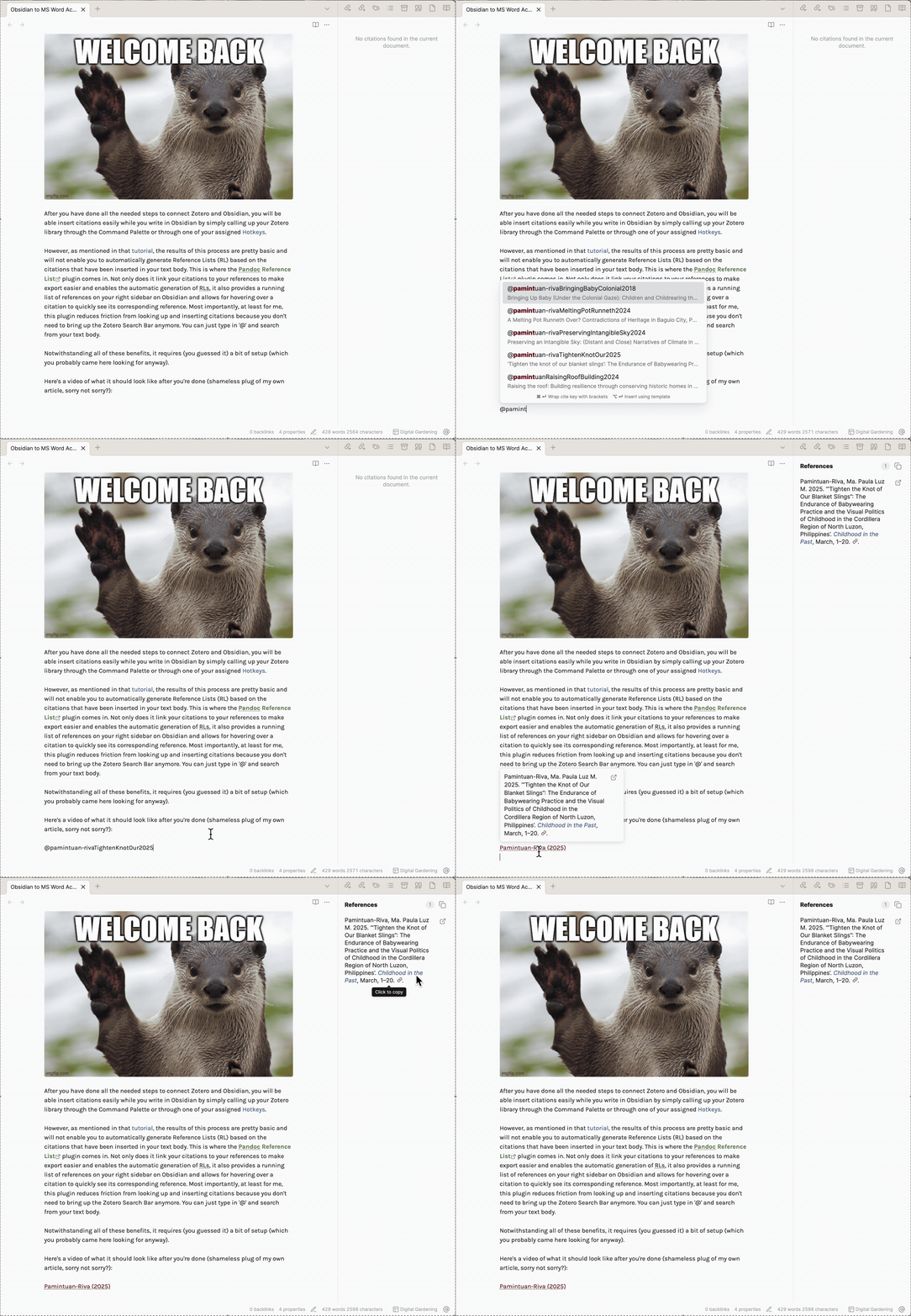
Not only does it link your citations to your references to make export easier and enables the automatic generation of RLs, it also provides a running list of references on your right sidebar on Obsidian and allows for hovering over a citation to quickly see its corresponding reference. Most importantly, at least for me, this plugin reduces friction from looking up and inserting citations because you don't need to bring up the Zotero Search Bar anymore. You can just type in '@' and search from your text body.
Notwithstanding all of these benefits, it requires (you guessed it) a bit of setup (which you probably came here looking for anyway).
Here's a video of what it should look like after you're done (shameless plug of my own article, sorry not sorry?):
Pandoc and Pandoc Reference List Plugin Setup
This plugin requires installing Pandoc on your system. The easiest way is to go to their GitHub and download the appropriate installer. Again, Choose the arm64-macOS package if you're using Apple Silicone chips (M1, M2, etc.) and choose the x86 package for Intel/older chips. Just follow the prompts and you'll be good to go. Check for correct installation on Macs by opening a Terminal window (CMD + Space then search for Terminal) and typing:
pandoc --version
Information on the current version installed should come up then. This hasn't failed me yet but if it does for you, then consulting the Pandoc Help Page may be your best bet.
Like all Obsidian Community Plugins, you can search for and install Pandoc Reference List from Settings > Community Plugins > Browse. Don't forget to enable the plugin.
Once it's been enabled, you have to set your settings:
- Fallback Path to Pandoc: Again, with Terminal, type the command below to get the fallback path. It usually ends with /pandoc. Once you have it, copy and paste that into the Fallback Path to Pandoc field on your plugin options.
which pandoc
- Path to Bibliography File: Remember when you exported your Zotero library into a .bib file? You did that when you connected Zotero and Obsidian. Anyway (on MacOS), look for that file again on Finder and right-click, then press the Alt/Option key. You should see 'Copy [your file's path] as Pathname' in the options. Click that and Paste that Pathname into this option field.
- Pull Bibliography from Zotero: I keep this toggled on (just in case the above path fails for some reason. I might just be paranoid.)
- Zotero Port: I keep this as the default.
- Libraries to Include in Bibliography: You may have several options here depending on how many Libraries or Group Libraries you have. Select as you see fit.
- Citation Style: Choose your preferred Citation Style. As of this writing, the latest Chicago Manual of Style edition available is the 17th. It takes time to write and this is all community-driven so be patient. If you have your own Citation Style in a CSL file, you also have the option of using that.
- Citation Style Language: Choose from a dropdown list. Self-explanatory.
- All other options relating to how citations look in Obsidian: I keep the defaults on this, feel free to experiment!
Once this is set up, your citekeys (those thingamajigs that have @ in front of them, representing references in your Zotero Library) will show up as human-friendly citations and will be easily exportable in a reference list. More on how to set up your exporting workflow in my Obsidian to MS Word Academic Workflow ft. the Enhancing Export Plugin.