Obsidian to MS Word Academic Workflow ft. the Enhancing Export Plugin
(aka how to use submit Word files to your supervisors without losing your mind)
Why do this?
Sometimes, you just need to submit a .docx file.
I know this whole process seems like a lot, but trust me when I say, when you're out there writing up a storm and submitting your work to multiple places that only take Word files, it's going to be worth it!
Software/Apps/Plugins Needed
- Zotero (with Better Bibtex)
- Obsidian
- Obsidian Plugins:
- Zotero Integration
- Pandoc Reference List
- Obsidian Enhancing Export
- Pandoc
- Choose the arm64-macOS package if you're using Apple Silicone chips (M1, M2, etc.)
- Choose the x86 package for Intel/older chips
Disclaimer
This is what works for me, and this digital garden is mostly me documenting what the heck it is that I did so I can periodically come back when I inevitably forget what I did. Exercise caution and know that I am not responsible for what you do on your machine. Enjoy!
Context
This is assuming that you already have Zotero linked to Obsidian via the Better Bibtex plugin and have Pandoc and the Pandoc Reference List plugin up and running. If you haven't (or you're on a new machine and need to set this up again) you must go to following tutorials first:
- How to Connect Zotero 7 to Obsidian (MacOS)
- How to Set Up Pandoc and Pandoc Reference List Plugin for Obsidian
Follow these instructions first, then come back.

After all this, you should have a very nice-looking interface for your citations. Open the Command Panel (CMD + P) and look for 'Pandoc Reference List: Show Reference List' (assuming you have not assigned a fun hotkey yet) to bring up the active RL on your right side pane.
Enhancing Export Setup
Obsidian is nice for non-linear writing and note-taking, but sometimes you're just required to submit a Word file, or a file in another format like PDF or LaTeX. We can do this with the Enhancing Export plugin. Since Word is most commonly used in my neck of the woods, this tutorial will focus on that.
Enhancing Export Installation
This is fairly straightforward. Just go to Obsidian Settings > Community Plugins > Browse and search for Enhancing Export. Install and enable, then go to its Options.
Options/Settings
Personally, this was the intimidating (and frustrating/infuriating) bit but I had fun figuring it out anyway. This is what my settings look like at the moment:
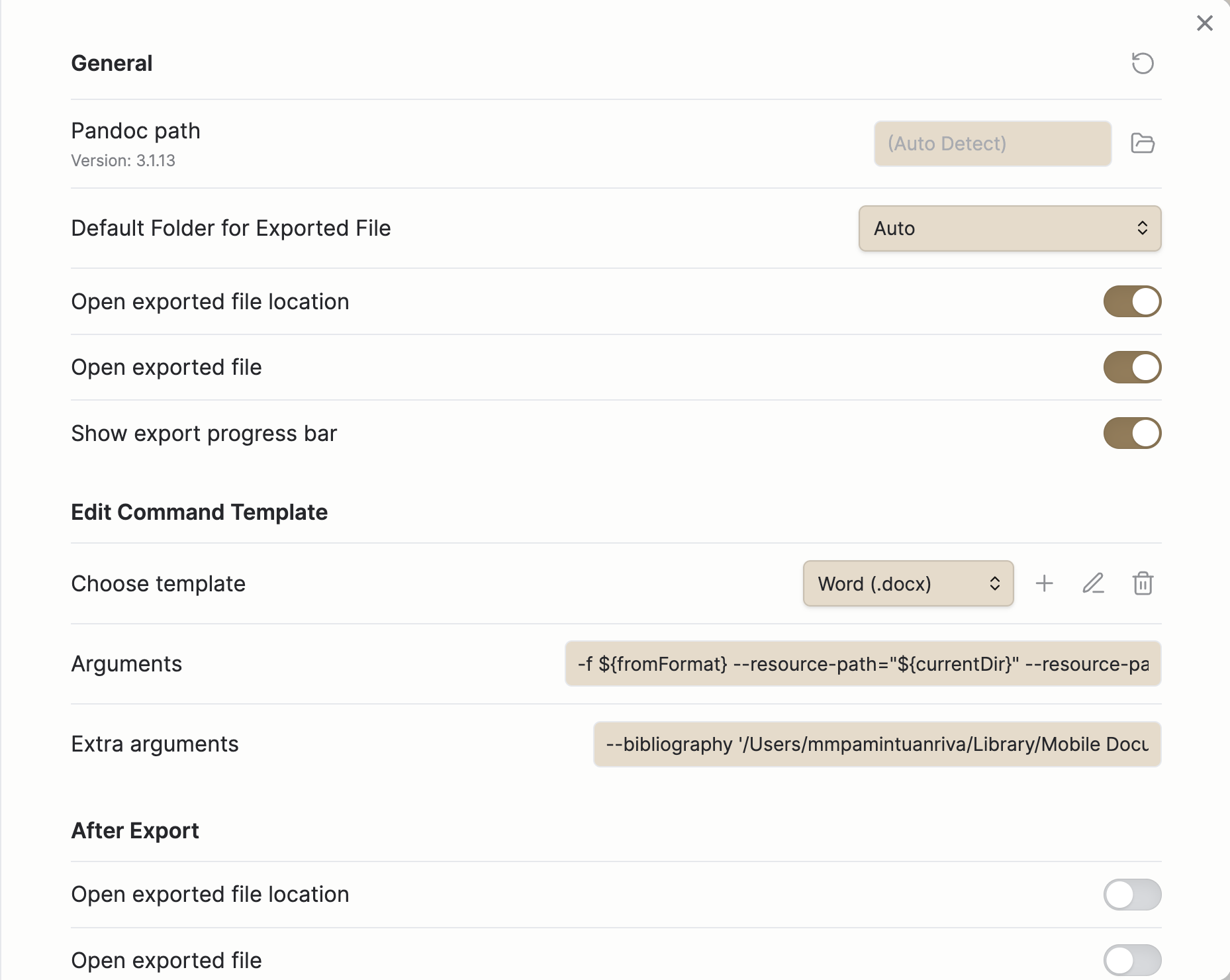
While most of the settings are fine to leave as the default or easy enough to understand, "Extra Arguments" is where it gets a bit tricky and tedious if it's your first time using Pandoc.
First thing you have to know is that you choose your output options through the "Choose Template" field. Your settings get saved automatically per template style.
I don't touch the "Arguments" field anymore, but here is some more info on what to put into "Extra Arguments":
bibliography
Remember when you exported your Zotero library into a .bib file? Go locate it again and copy its path onto your clipboard (clicking on the file and pressing the Alt/Option button will bring up the option to do this). Then, paste it after the -- bibliography argument. This tells Pandoc where to get your references.
--bibliography "/User/your-username/Library/whatever-path/whatever you named your library.bib"
citeproc
tells Pandoc to render the citations you made so they will look like normal citations instead of staying as citation keys (with @'s in front)
--citeproc
csl
tells Pandoc what citation style to follow when exporting your reference list. You can call for a local .csl file or use one that is available online through the Official Repository for Citation Style Languages. Search for your preferred style and click through to the file. Then, click 'Raw' to get the CSL's URL.
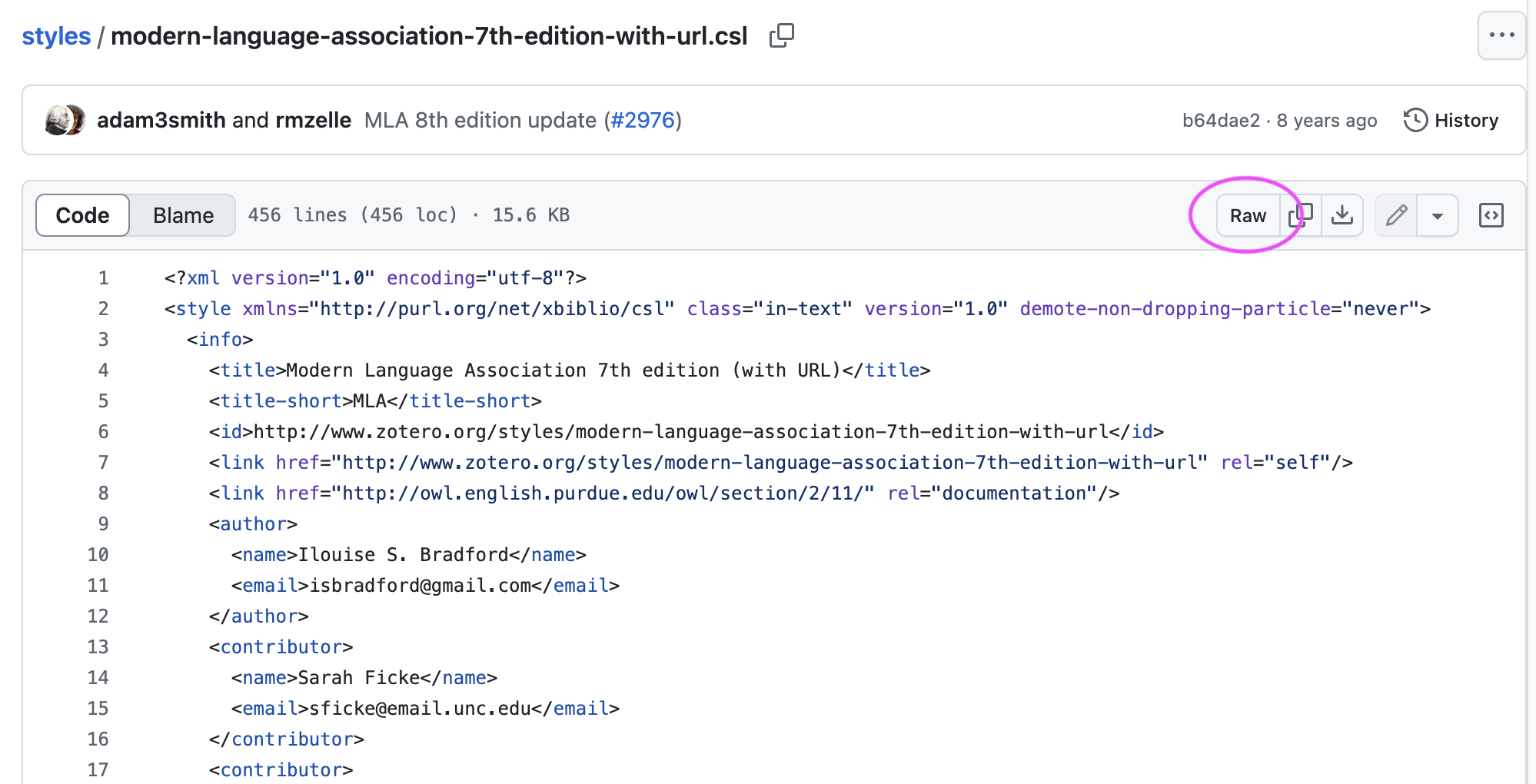
Copy this, and paste after --csl
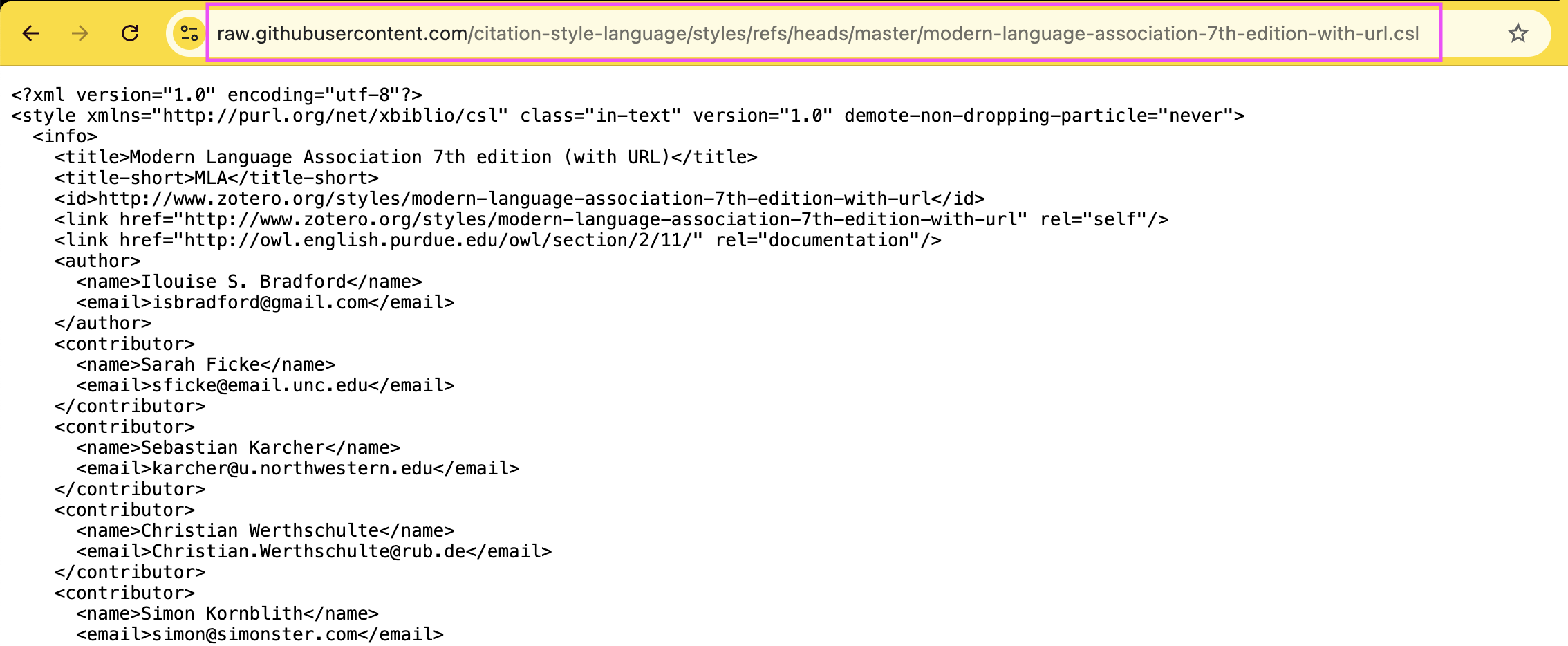
For example:
--csl "https://raw.githubusercontent.com/citation-style-language/styles/refs/heads/master/modern-language-association-7th-edition-with-url.csl"
Disclaimer: Despite coming from the humanities, I think the MLA citation style is a ball of chaos and madness. Sorry not sorry. 🤷🏻
reference title
This tells Pandoc what to name your Reference List section
-M reference-section-title=References
Bonus: docx reference document
Sometimes, you want your paper to come out a certain way because you just don't want to spend two or more hours fixing headers and fonts, etc. You can create a reference document as a sort of sample for Pandoc to copy styles off of. Name this file "reference.docx", save it somewhere and copy the file path like we did for your Library's .bib file. Then, phrase the argument as
--reference-doc "Users/username/whatever-path/reference.docx"
I will probably write a guide on how to make a Reference Doc but for now, here is a pretty helpful forum exchange on what it is in the context of a similar workflow. Basically, you create a .docx file that has the MS Word Styles you prefer.
Putting it All Together
After all that, your "Extra Arguments" should look something like
--bibliography "/User/your-username/Library/whatever-path/whatever you named your library.bib" --citeproc --csl "https://raw.githubusercontent.com/citation-style-language/styles/refs/heads/master/modern-language-association-7th-edition-with-url.csl" --reference-doc "Users/username/whatever-path/reference.docx" -M reference-section-title=References
Note the quotation marks around each path or URL.
How to Export to Word
Once all setup is finished, you just need to pull up the Command Palette and select "Export to..." to convert!